
Instagram is a visual playground. A great photo can stop the scroll. A great edit can make people tap like, save, and follow. The good news? You do not need a fancy studio. You only need your phone, a good app, and a little editing magic.
TLDR: The best mobile apps for editing Instagram pictures like a pro are Lightroom Mobile, VSCO, Snapseed, Canva, Facetune, Prequel, Tezza, and Afterlight. Use Lightroom for clean edits, VSCO for filters, Snapseed for quick fixes, and Canva for posts with text. Pick one or two apps first, learn them well, and keep your style consistent.
Why editing apps matter
Your phone camera is already powerful. But raw phone photos can look flat. The colors may feel dull. The lighting may look odd. The sky may be too bright. Your face may be in shadow. That is where editing apps help.
A good editing app lets you fix light, color, sharpness, and mood. It helps your photos look polished. It also helps your Instagram feed look like it belongs together.
Think of editing like seasoning food. A little salt is great. Too much salt ruins dinner. The same rule works for photos. Edit enough to make the picture shine. Do not edit so much that people ask, “Is that even the same beach?”
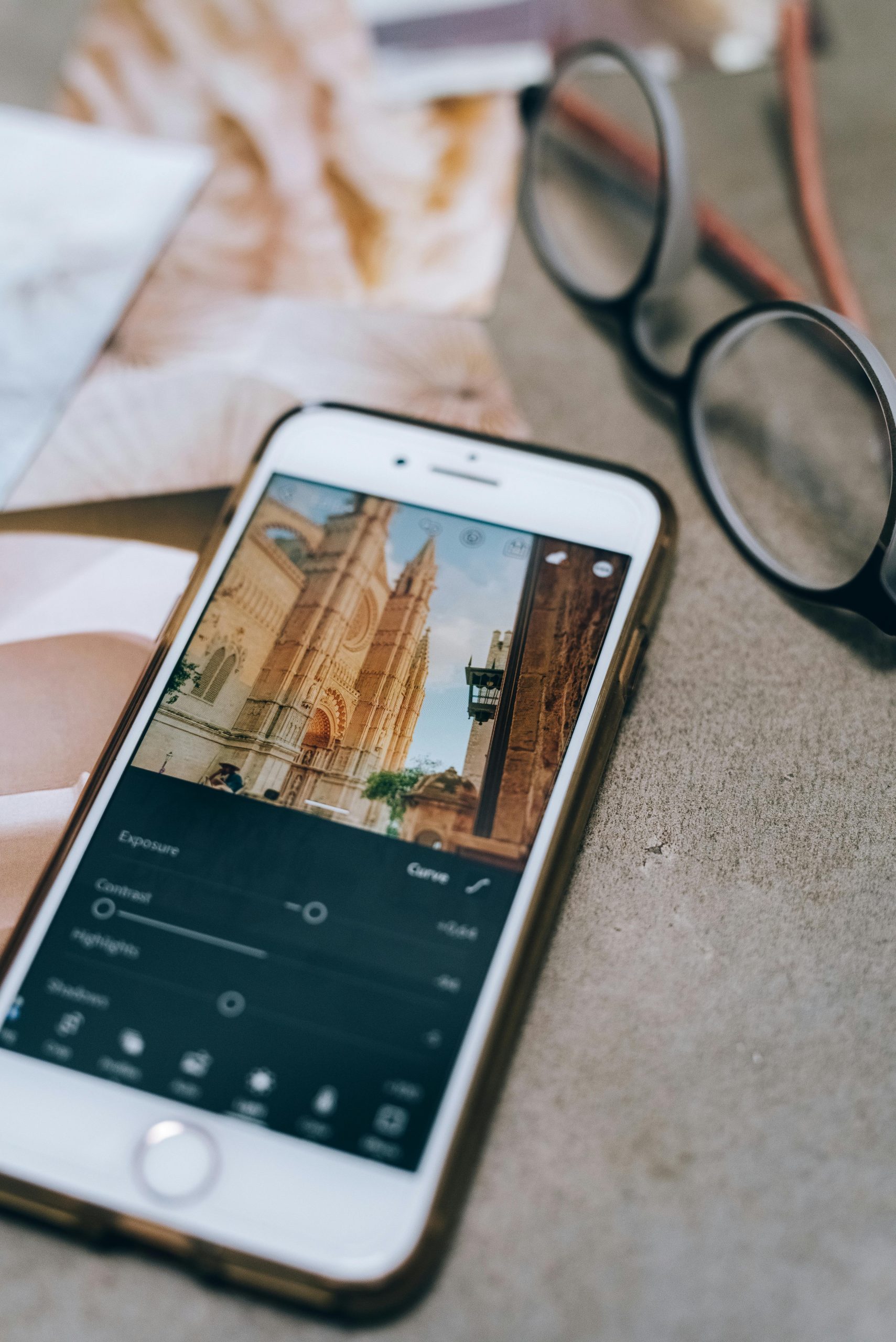
1. Lightroom Mobile: Best for pro level edits
Lightroom Mobile is one of the best photo editing apps for Instagram. It is powerful, clean, and loved by photographers. It works on iPhone and Android.
Lightroom is great for fixing light and color. You can change exposure, contrast, shadows, highlights, warmth, and sharpness. You can also use presets. Presets are like ready-made editing recipes. Tap once, and your photo gets a new look.
Best for:
- Bright lifestyle photos
- Travel pictures
- Food photos
- Clean influencer style edits
- Consistent Instagram feeds
Lightroom may look scary at first. Do not panic. Start with three tools. Use Exposure to brighten the photo. Use Contrast to add punch. Use Temperature to make the photo warmer or cooler.
Pro tip: Create your own preset once you find a look you love. Then use it on future posts. This keeps your feed looking smooth and stylish.
2. VSCO: Best for stylish filters
VSCO is famous for its filters. The app has a calm, artsy feel. It is perfect if you want your Instagram photos to look soft, moody, or film-like.
VSCO filters are not loud. They are classy. They can turn a normal coffee photo into a cozy café moment. They can make beach photos feel dreamy. They can make city photos look cool and editorial.
Best for:
- Film style photos
- Soft aesthetic feeds
- Simple edits
- Muted tones
- Vintage looks
VSCO is easy to use. Pick a filter. Lower its strength. Then adjust brightness and grain. Do not use filters at full power every time. A softer filter usually looks more natural.
Fun tip: Add a tiny bit of grain to make photos feel like they were shot on film. It gives personality. It says, “I am casual,” but also, “I know what I am doing.”
3. Snapseed: Best free all around editor
Snapseed is a free app from Google. It is small but mighty. It has many tools that feel professional. It is also easy once you learn the basics.
Snapseed is great for quick fixes. You can brighten one part of a photo. You can remove small spots. You can sharpen details. You can also use the Selective tool, which is super useful.
Best for:
- Free editing
- Quick photo fixes
- Removing tiny distractions
- Brightening faces
- Improving details
The Healing tool is a little magic wand. Use it to remove a crumb on a table, a tiny mark on a wall, or a random object in the background. It is not perfect for big removals. But for small things, it works well.
Pro tip: Use the Tune Image tool first. Adjust brightness, ambience, and contrast. Then use smaller tools after that.
4. Canva: Best for Instagram posts with text
Canva is not just for photo edits. It is great for creating Instagram posts, Stories, carousels, and Reels covers. If your picture needs text, icons, frames, or layout help, Canva is your friend.
Canva has many templates. You can make quote posts, sale posts, event posts, mood boards, and educational carousels. You can also add your own photos and style them with filters.
Best for:
- Instagram carousels
- Story designs
- Text on photos
- Business posts
- Reels covers
Keep designs simple. Use one or two fonts. Use colors that match your brand or vibe. Leave space around your text. Crowded designs are hard to read. And tired thumbs scroll away fast.
Pro tip: Make a set of templates for your Instagram. Use the same fonts and colors each time. Your feed will look more professional with less effort.
5. Facetune: Best for portraits and selfies
Facetune is popular for selfies and portraits. It can smooth skin, brighten eyes, whiten teeth, fix lighting, and reshape small details.
Now, here is the big rule. Use Facetune with care. A little touch-up is fine. Too much can make the photo look fake. You want to look like the best version of yourself. Not like a wax statue with Wi-Fi.
Best for:
- Selfies
- Portraits
- Beauty photos
- Makeup content
- Quick face touch-ups
Use smoothing at a low level. Keep natural skin texture. Brighten the photo before changing your face. Many “bad selfie” problems are actually just bad lighting problems.
Pro tip: Focus on light first. Then make tiny changes. If people notice the edit before they notice you, the edit is too strong.
6. Prequel: Best for trendy effects
Prequel is fun. It is made for bold effects, trendy filters, sparkles, blur, retro looks, and creative edits. If you want your photos to feel current and playful, try it.
Prequel is perfect for creators who like movement, fashion, music vibes, or dramatic edits. It can make a simple photo look like a magazine cover, a music video still, or a dreamy album poster.
Best for:
- Trendy edits
- Creative effects
- Fashion photos
- Retro looks
- Bold Instagram Stories
Be careful with strong effects. One cool glow is nice. Ten glowing effects can look like your photo joined a circus. Use effects to support the photo, not hide it.
7. Tezza: Best for warm lifestyle aesthetics
Tezza is loved by lifestyle creators. It has warm filters, vintage tones, and lovely editing tools. It is great for people who want a stylish, soft, and curated feed.
Tezza works well for fashion, home, food, travel, and daily life photos. The app has presets that feel modern but still relaxed. It can make a simple mirror selfie look like a planned content shoot.
Best for:
- Warm tones
- Fashion content
- Lifestyle photos
- Cozy interiors
- Creator feeds
Pro tip: If your feed feels messy, choose one Tezza filter style and stick with it for ten posts. You will see the feed become more connected.
8. Afterlight: Best for textures and creative details
Afterlight is a beautiful app for creative edits. It has filters, textures, light leaks, dust effects, frames, and advanced color tools. It is great if you want your photos to feel artistic but not too wild.
Afterlight is especially nice for vintage looks. You can add soft dust, faded colors, or light leaks. These details make photos feel warm and nostalgic.
Best for:
- Vintage edits
- Light leaks
- Texture effects
- Creative portraits
- Moody feeds
Pro tip: Add texture last. Finish your basic edit first. Then add dust, grain, or light leaks in a small amount.
How to choose the right app
You do not need every app. That is how your phone becomes a graveyard of icons. Start with your goal.
- Want clean professional edits? Use Lightroom.
- Want fast filters? Use VSCO.
- Want a free powerful editor? Use Snapseed.
- Want posts with text? Use Canva.
- Want better selfies? Use Facetune.
- Want trendy effects? Use Prequel.
- Want warm creator vibes? Use Tezza.
- Want vintage texture? Use Afterlight.
A great combo is Lightroom plus Canva. Edit the photo in Lightroom. Then design the post in Canva. Another good combo is VSCO plus Snapseed. Use Snapseed to fix problems. Use VSCO for style.
Simple editing steps for pro looking Instagram photos
Here is an easy editing order. Follow it when you feel stuck.
- Crop first. Remove extra space. Make the subject clear.
- Fix brightness. Make sure the photo is not too dark.
- Adjust contrast. Add depth, but do not crush details.
- Fix temperature. Make the photo warmer or cooler.
- Adjust colors. Make skin, food, or skies look natural.
- Add a filter or preset. Keep it soft.
- Sharpen a little. Add detail, but avoid crunchy edges.
- Remove distractions. Clean tiny spots or background clutter.
- Check the final look. Zoom out before posting.
This order keeps your edit clean. It also stops you from doing too much too soon.
Common editing mistakes to avoid
Editing is fun. But small mistakes can make a photo look cheap. Watch out for these:
- Too much saturation. Neon grass is not a personality.
- Over-smooth skin. Real skin has texture.
- Heavy filters. Let the photo breathe.
- Crooked horizons. Straighten beach and city shots.
- Too much sharpening. It can make photos look harsh.
- Mixed styles. A feed looks better with a steady vibe.
Before posting, take a short break. Look at the photo again after five minutes. Fresh eyes help. If the edit still looks good, post it.
Final thoughts
The best Instagram editing app depends on your style. Lightroom is best for polished edits. VSCO is best for easy filters. Snapseed is best for free fixes. Canva is best for designed posts. Facetune helps with portraits. Prequel, Tezza, and Afterlight add personality.
Start simple. Pick one main editing app and one design app. Learn them well. Save your favorite settings. Build a style that feels like you.
Most of all, have fun. Instagram should not feel like homework with hashtags. Try things. Break rules. Make bright photos. Make moody photos. Add a little grain. Remove that weird trash can in the background. Then post with confidence.
Your phone is already a mini studio. These apps are the editing crew. Now go make your next Instagram picture look like a pro touched it.
