
Change your App Store region only when you really need local apps, prices, or subscriptions tied to another country. Apple offers the App Store in 175 countries and regions, but your Apple ID must match billing rules, payment options, and content rights for that place [source: Apple].
TLDR: You can change your App Store region in Apple ID settings, but you may need to cancel subscriptions, spend store credit, and add a valid local payment method first. For example, if you move from the U.S. to Germany and need a banking app available only in Germany, changing region may be the cleanest fix. Expect the process to take about 5 to 15 minutes if your account is clean, but much longer if you have active subscriptions or a small balance left. A safer option for many users is a second Apple ID used only for app downloads.
When Changing Region Makes Sense
You should change your App Store region when your life has actually moved. That means a new address, new bank card, and regular use of local services. It also makes sense if your required apps are not offered in your current store.
Common cases include:
- Moving to another country for work, school, or family.
- Needing local banking, transport, tax, or health apps.
- Paying for subscriptions in the currency of your new home.
- Using a local payment card that Apple accepts in that region.
The catch is that Apple does not treat the App Store like a simple language setting. It is tied to legal rights, taxes, and payment systems. That is why the switch can feel more rigid than it should.
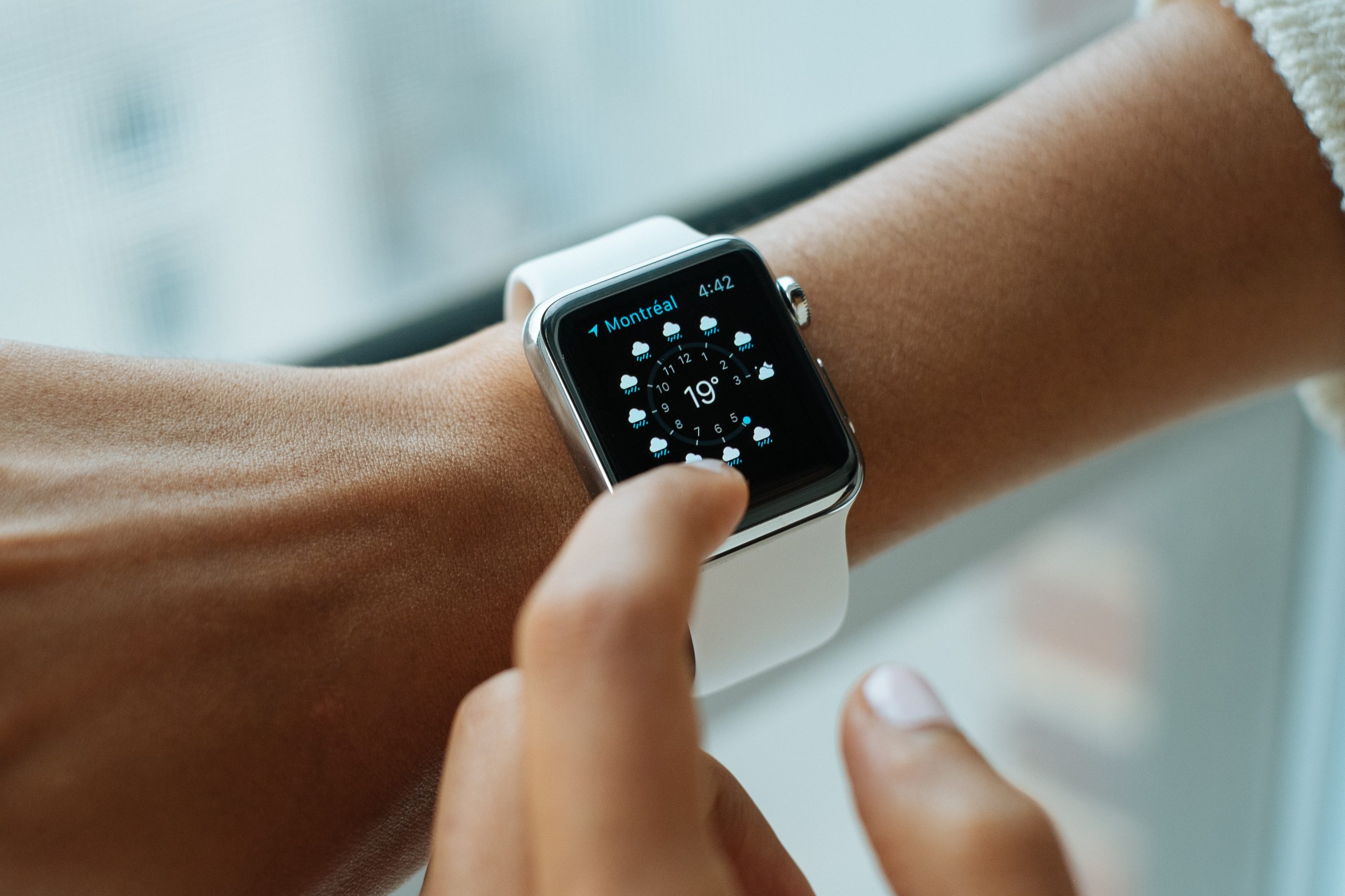
How to Change Your App Store Region on iPhone
Use your iPhone or iPad if you want the fastest route.
- Open Settings.
- Tap your name at the top.
- Tap Media & Purchases.
- Choose View Account.
- Tap Country/Region.
- Select Change Country or Region.
- Pick the new country or region.
- Accept the terms.
- Add a valid payment method and billing address.
If the option is missing or blocked, your account likely has something that must be fixed first. Apple lists spending remaining balance, canceling subscriptions, and waiting for pre-orders or rentals to end as possible requirements [source: Apple].
Payment Requirements You Should Check First
Your payment method usually needs to come from the new region. A U.S. credit card often will not work for the Japan store. A German debit card may not work for the Canadian store. Apple checks billing details, not just the card number.
Before you switch, check these items:
- Store credit: Spend any remaining Apple ID balance. Even a tiny amount can block the change.
- Subscriptions: Cancel active subscriptions and wait until they fully expire.
- Family Sharing: Leave your Family Sharing group if it is tied to another region.
- Pre-orders and rentals: Wait until they finish.
- Payment card: Use a card, PayPal account, or mobile billing method accepted in the new country.
- Billing address: Enter a real address in the selected region.
Honestly, it feels like a small account setting until one leftover $0.43 balance stops the whole thing. That tiny block can cost more time than the actual switch.
What Changes After You Switch
After the change, you will see the App Store for the new region. Prices, taxes, apps, ratings, and subscription options may change. Some apps may disappear from search. Others may stay installed but no longer update if they are not sold in the new store.
Your past purchases do not always transfer cleanly. You may still be able to use installed apps, but downloading them again can be an issue if they are unavailable in the new region. Music, movies, books, and TV content can also vary by country.
Common Problems and Fixes
“You have a store credit balance.”
Spend it if possible. If the balance is too small to use, contact Apple Support and ask them to remove it.
“You have an active subscription.”
Cancel it and wait. The region may stay locked until the paid period ends.
“Payment method declined.”
Use a local card or approved local payment option. Make sure the billing address matches.
“App is not available.”
The developer may not offer it in that region. Changing language will not fix that.
Better Alternatives to Changing Region
Changing your main Apple ID region is not always the best move. If the need is short term, use a cleaner option.
- Create a second Apple ID: Use one account for your main country and another for the foreign App Store. This is common for users who need one or two local apps.
- Use web versions: Some banking, streaming, and shopping services work fine in Safari.
- Ask the developer: Some apps are region locked by mistake or limited rollout.
- Wait until you relocate: If you are only traveling for a week, changing region may not be worth the hassle.
A second Apple ID is often the most practical choice. You can sign out of Media & Purchases and sign in with the other account without changing your main iCloud account. That means your photos, iCloud Drive, messages, and device backups stay tied to your primary Apple ID.
Final Advice
If you moved countries, update your App Store region and use a valid local payment method. If you only need one app from another country, consider a second Apple ID first. It is less disruptive and easier to reverse.
Before changing anything, review your subscriptions, spend your credit, and save copies of any content you may lose access to. A careful check now can prevent a messy account problem later.
